Factory Reset a NETGEAR Router
How To Factory Reset a NETGEAR Router: Complete Guide to Restore Default Settings
Have you ever googled how to reset a NETGEAR router because of a forgotten admin password, multiple internet issues or wrong network settings? A factory reset, however, is often enough to restore your router to a clean and working condition. Factory resetting a NETGEAR router clears all personalized settings like Wi-Fi names and passwords on the device and resets it to the default factory configuration, so you can set it up again from scratch.
Regardless of whether you have a NETGEAR Nighthawk router, WiFi router or an accompanying mesh networking device or combination, knowing the proper reset can help save time and avoid lengthy troubleshooting steps. This guide shows you how to factory reset a NETGEAR router, what resetting entails, how to log in again after resetting, and the essential steps to secure your network once it’s restored.
What Happens When You Factory Reset a NETGEAR Router?
A factory reset restores your NETGEAR router to the state it was in when it left the factory. It wipes out all customized settings saved on the device and returns to the factory configuration stored in the firmware of the router.
A NETGEAR router factory settings reset removes your custom WiFi network name, wireless password, router admin password, security settings and advanced configurations. Any changes you made for port forwarding, guest networks, parental controls, VPN settings or custom DNS configurations will also be deleted.
A factory reset and a regular router reboot seem the same to most users, but these are two different processes. Restarting a router just turns the device on and off while keeping all settings. The factory reset clears the saved configuration and sets a new initial state.
Why You May Need To Factory Reset Your NETGEAR Router
There are several cases where you will need to reset the NETGEAR router. The most popular reasons for it are that you may have forgotten your router administrator password. But if you are unable to log into the NETGEAR router login page and there is no password recovery option, a factory reset enables you to easily log in with the default username and password again.
A factory reset is also great if you are giving away your router to someone. If you are selling, donating or giving away your NETGEAR device and want to reset it so that your personal network information is erased. You do so by deleting saved WiFi information and personal security criteria to protect their privacy.
For others, a reset comes after switching internet providers. A new ISP may use different settings, and it’s easier to set one up with factory defaults.
How To Factory Reset a NETGEAR Router Using the Reset Button
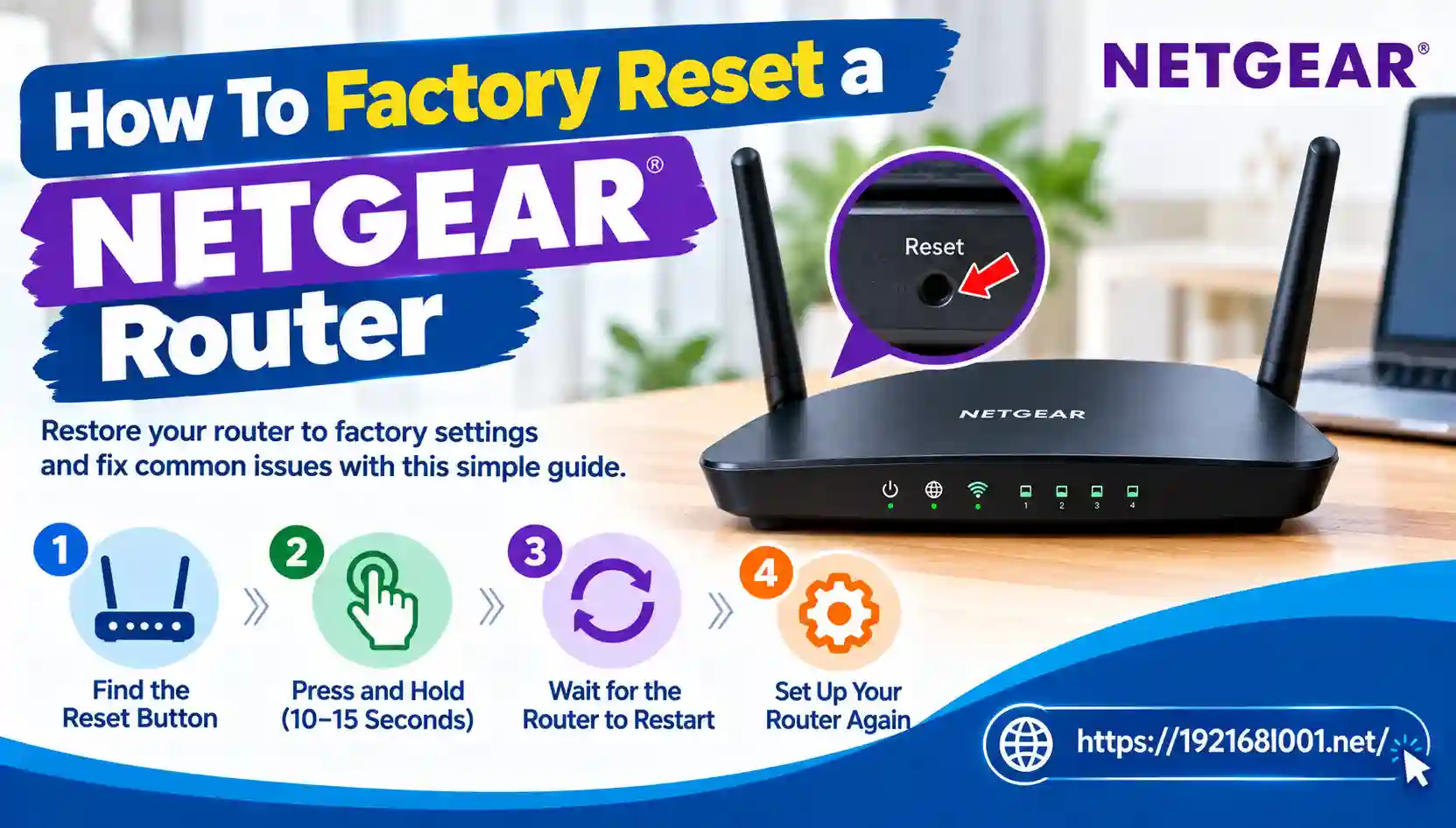
The physical reset method is the simplest and most reliable for factory resetting a NETGEAR router. NETGEAR engineers this button as a smaller non-punchable hole in order to provide no unwanted resets during day-to-day use.
First, ensure that the Power LED on your NETGEAR router is glowing. The router itself needs to be powered on so that the reset command can use electricity to clear the saved configuration.
Find a button called Reset or Restore to factory defaults on the router back panel. Because the button is generally within a tiny hole, you will require an unfolded paper clip, pin or anything else to push.
Using a SIM ejection tool or paper clip insert it into the reset hole and press the button. Just keep it for over 7 seconds. The scheduled time during which the router lights will start blinking or there is a sign that the reset process has started.
When the router has sufficiently booted back up all old settings will now be deleted and the device will revert to factory default mode.
How to Access NETGEAR Router After Factory Reset
As a last resort, after a factory reset you have to reconnect the NETGEAR router before configuring your network. Connections are established with either an Ethernet cable or default from the WiFi network printed on the label of the router.
All NETGEAR routers use either 192.168.100.1 or routerlogin. or 192.168.1.1 to go to the administration site. Once you see the login screen, use the default username and password. The default username on many NETGEAR routers is admin; the default password is password
Once you successfully log in, the router setup process will begin. The setup wizard from NETGEAR will then assist you in setting up your Internet connection, wireless settings and security options.
How to Setup NETGEAR Router After Reset
Factory-resetting only resets the router itself. It does not auto-configure your internet connection or set your old network back up to how it was. So, you have reset your NETGEAR router and now you need to set it up again.
New Wifi network name & password: Select a unique SSID that does not include personal information, such as your name or address. To protect the wireless network, create a robust password combined with letters numbers and special characters.
Common Issues After NETGEAR Router Factory Reset
Many users face some problems with the login page or internet reconnection just after resetting their NETGEAR router. The issues are mostly due to partial setup or incorrect connection details.
Make Sure Your Device Is Connected Properly to the router. Check whether the NETGEAR login page does not open. If not, please try another browser or try accessing it via an Ethernet cable as it is more stable.
If the default login password does not work, the reset may not be completed correctly. Try the Reset Process again, but keep in mind that the reset button has to be pressed for a minimum period of time as well in this particular case.
How To Avoid Problems Before Resetting Your NETGEAR Router
It’s a good idea to note down any key network details before you do it. Remember your present WiFi name, password, ISP information and any other configurations you may want to use in the future.
If your router works fine except for a single setting that you need to change, do not just reset the entire device. How To Resolve Many Problems In The NETGEAR Admin Panel Without Destroying Your Configuration
Think of a factory reset as the last resort for troubleshooting rather than a preventive maintenance method.
Conclusion
If you have forgotten your password, face serious configuration problems or need to prepare the router for a new user, a NETGEAR router factory reset is an effective solution to restore your device. Just hold the reset button for around seven seconds, wait for the router to restart, and repeat setting up (again).
But keep in mind that a factory reset will not directly work on WiFi, because all your settings such as Wifi name & pass, advanced configurations are erased. Note: Whenever you restore your NETGEAR router, make sure that you configure strong login credentials, upgrade firmware and properly configure the network security settings.
Knowing when and how to reset your NETGEAR router allows you to regain access as soon as possible, troubleshoot network issues, and ensure a safer and more reliable home Internet connection.